
Simple Stocktake Application
Contents Hide
Description
This section will describe how to create a simple application that will be capable of keeping track of stock take through addition, modification and deletion of stock items. The application will also have the ability to display all stock take items. This information can also be captured, sent and synchronised with a server side database through this example application.
Create the BXP Project
First the BXP project will need to be created. BXP projects can be created by either:
Click on the New icon
 in the BrightBuilder toolbar or Projects panel, or
Select File>New Project... from the Main Menu
The New Project-Select Project Type dialog will display as shown below.
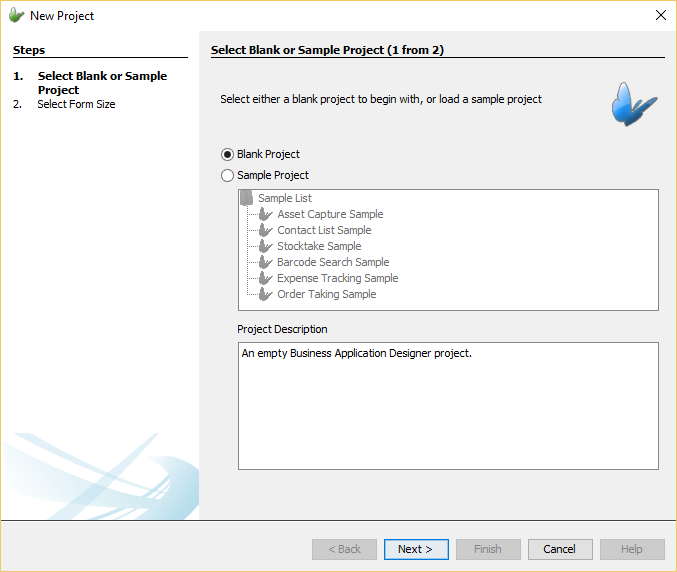
Follow the prompts shown in this dialog, creating a blank project with desired form size. Name the project in the desired project and click 'Create'. Next the location of where the project should saved will need to be entered. Once entered a BXP project will be created.
List Dialog
A list dialog will be used in order to provide the application the ability to display a list of stock items currently stored on the device. This dialog will be the main form dialog meaning it will be the first form dialog to be shown when the application is opened. The list dialog will also be used as the entry point to the other form dialogs of the application in order to carry out more functionality such as creating a new stock items.
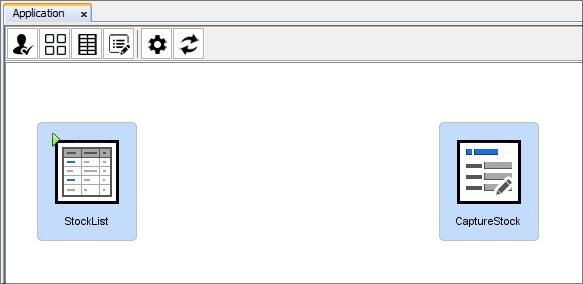
Once the project has been created, open the project's tree and open the 'Application' element to open the Application panel. In the Application panel, drag and drop the list dialog icon onto the Application canvas to create a list dialog node. By right-clicking the list dialog node, the option to 'Rename' the dialog node can be done. Double-clicking the node will open the specific list dialog node editor.
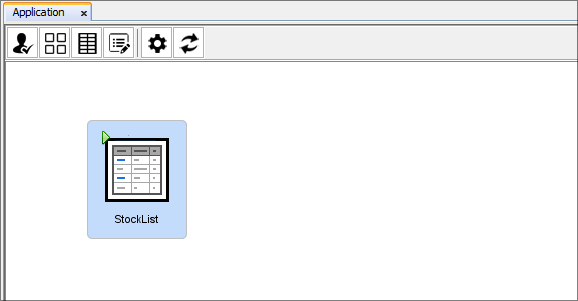
The list dialog has the purpose of showing data records from the specified data table in a listview control. As the dialog and project is brand new, there will initially be no data tables. Data tables can be created from within the list dialog editor. A data table is a table that will contain the data used within the application. These tables are essential to an application if data is to be stored as they will be used on the device to hold the data and be used for synchronisation for sending and receiving data. They are a collection of data about a specific topic, such as items or employees.
To create a data table, use the data table drop down and select '<Bind to New Table...>'. By selecting this option, the Create Table window will appear where definition of the data table can be defined such as the name of the data table and the tables columns. For this application, name the data table 'STOCK_ITEM' and add column as the tables unique record identifier with type 'int'. Additionally add data columns for the name, quantity and barcode of the item. Add these data columns with appropriate names, descriptions and types. After doing this, your table definition should look similar to the image below.
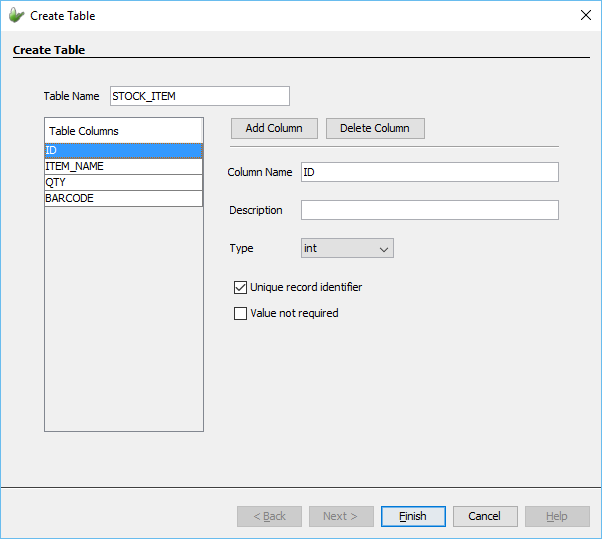
By pressing the 'Finish' button and if the table definition is valid, the table will be created and automatically selected as the dialog's data table. Once the data table has been set, the listview control in the dialog will be populated with the data columns from the data table. A WYSIWYG panel is used within the editor to show how the form will look like on the mobile device. Through this panel, the visual components can be changed to accommodate to how the form is desired to look. By clicking each component, the Properties panel will be populated with its properties where they can be edited. These components should be placed within the form bounds (i.e. black rectangle box).Through the list columns panel, the columns to be displayed in the listview can be edited and the columns header text to be displayed and the width of the column within the listview can be changed as well. Additionally the text alignment can be specified and a display format can be provided for date and numbered columns.
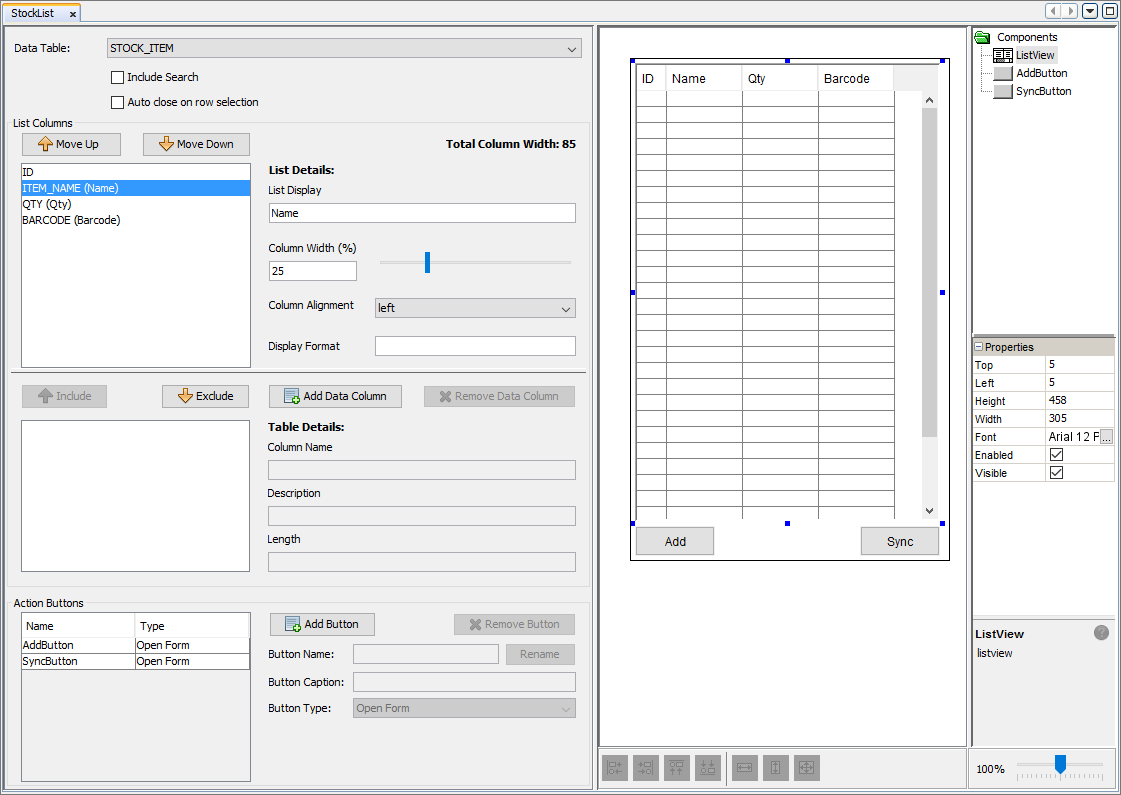
In this application the list dialog will only require two buttons, one for adding a new stock item and another for opening a sync dialog. In order to add a new item, an edit dialog will be used to enter the details of a new item. Through this edit dialog, it will also be possible to modify an existing stock item and delete an item. In this example application, a user will be able to select an item in the listview which will open the edit dialog ready to modify the item that was selected. Another button will be used to open a sync dialog so synchronisation can be performed. To set this functionality, Form Links will be used and explained further in this tutorial.
For more information on List Dialogs, refer to the List Dialog chapter of the Form Dialog section.
Edit Dialog
Next we will add an edit dialog to the application. Edit dialogs are used to modify a data tables contents (i.e. the data within the table). An edit dialog can add new records to the table or modify an existing record in the data table. An edit dialog can also be used to view a record in the data table in a read-only mode disallowing any editing of the data. It is also possible to delete an existing record in the data table through an edit dialog.
An edit dialog can be added to the application by dragging and dropping the edit dialog icon from the dialog toolbar into the application canvas. The purpose of this dialog is to provide a form that can be opened in multiple contexts to manipulate the contents of the data table. For the purposes of this application, the edit dialog can be opened with the context for adding new stock items into the data table and another for modifying an existing stock item record in the data table.
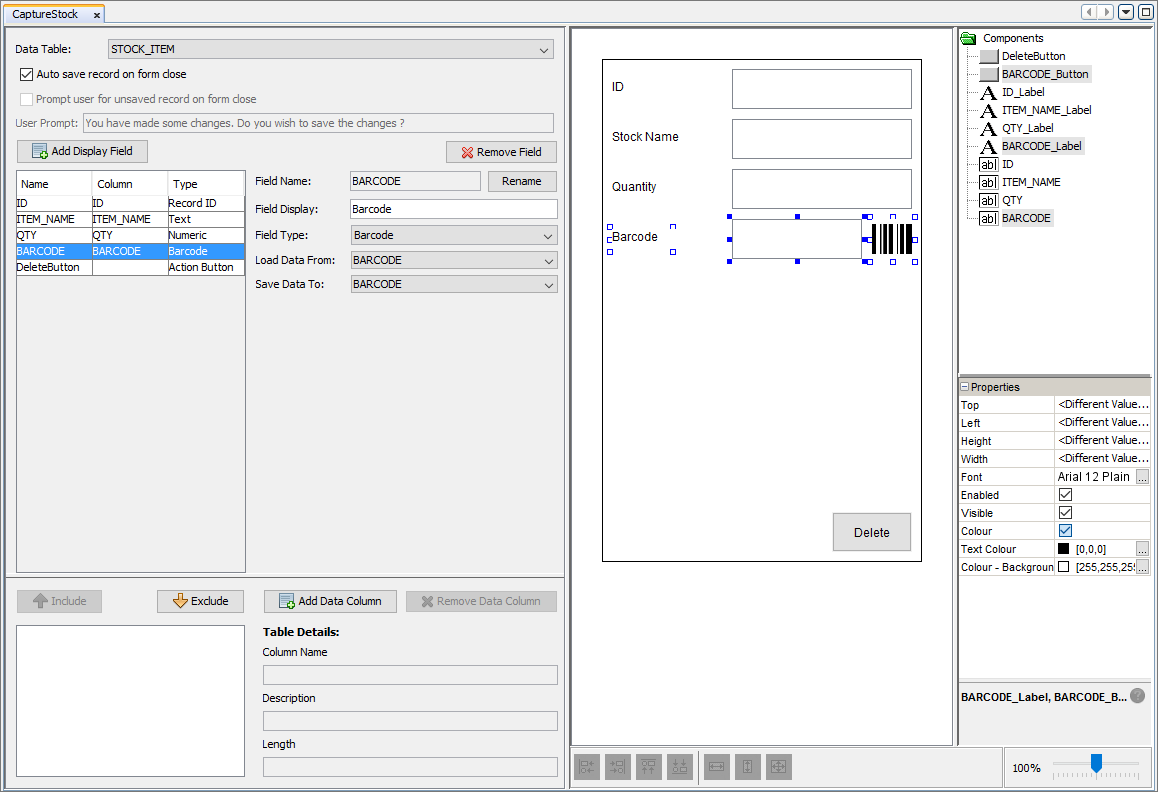
Within this section we will create the dialog ready for data entry from the user. By double-clicking on the edit dialog node, the edit dialog editor will open where firstly the data table should be set. By binding the data table to the dialog will indicate the data columns that will be added to as fields. By selecting the STOCK_ITEM data table, the dialog will then be automatically populated with fields corresponding to the data columns and their specified type. The form will be populated with controls that will allow for user input (i.e. a column with text type, will add a edit control). Another automatic feature is the addition of save and delete buttons added to the edit dialog. The save action button has the purpose of saving the record into the data table and the delete button will become active if the edit dialog has been opened with the context of modifying an existing item.
However with this application, we will be using the 'Auto save record on form close' functionality to save the record into the data table meaning the add button automatically added can be deleted from the edit dialog. To enable this option, simply press the checkbox next to the options text. This feature provides the ability to automatically save the record into the data table. If the edit dialog was opened in the context of adding a new item and the dialog is closed, then a new record will be automatically added. While if the edit dialog was opened in the context to modify an item and the dialog is closed, then the record will be automatically updated on the data table. Through this option, the application can be made user friendly without the need for multiple taps of the screen.
To complete the edit dialog, the BARCODE field's type should be changed to Barcode. By doing this, the field can be used to capture barcode data and save it as part of the items details.
Now we have 2 dialogs, a list dialog for viewing the list of stock items and another for the creation, modification and deletion of items in the data table. For more information about Edit Dialogs refer to the Edit Dialog section in the Form Dialog chapter.
Sync Dialog
Next, a sync dialog will be created to facilitate the synchronisation of the captured stock items and send this data to the server that will be saved into a database. Synchronisation ensures the integrity of data on both the server and client is preserved while allowing both sides to have consistent data. Through synchronisation captured data out on the field can be sent and stored into back-end business information systems. Synchronisation can be added to mobile applications through the BXP designer and Sync Dialogs.
Sync Dialogs are tasked in providing synchronisation to applications by allowing users to enable and disable synchronisation rules that contain the fundamental information that facilities synchronisation of data. Sync requests provide the requests for synchronisation that encompasses what data and in what direction it will be sent (either Client to Server or Server to Client). Through sync dialogs, users of the application are able to enable and disable desired the sync requests to be fulfilled when synchronisation is executed.
A sync dialog can be added to the application by dragging and dropping the sync dialog icon from the dialog toolbar into the application canvas. By double clicking on the newly created dialog, it will open the specific sync dialog editor where sync requests can be added. By default, a sync button will automatically be added to the form as this button will execute the synchronisation engine on the device to fulfil enabled sync requests.
For this application, only one sync request is required. This request
will be to upload the captured stock item details on the device to
the server that will be saved into a database. Sync requests can be
added to the dialog by simply pressing the  button. By selecting the sync request, the details of the request
can be changed. The sync direction should be set to 'Upload (Send
to server)' and the STOCK_ITEM table should be selected.
button. By selecting the sync request, the details of the request
can be changed. The sync direction should be set to 'Upload (Send
to server)' and the STOCK_ITEM table should be selected.
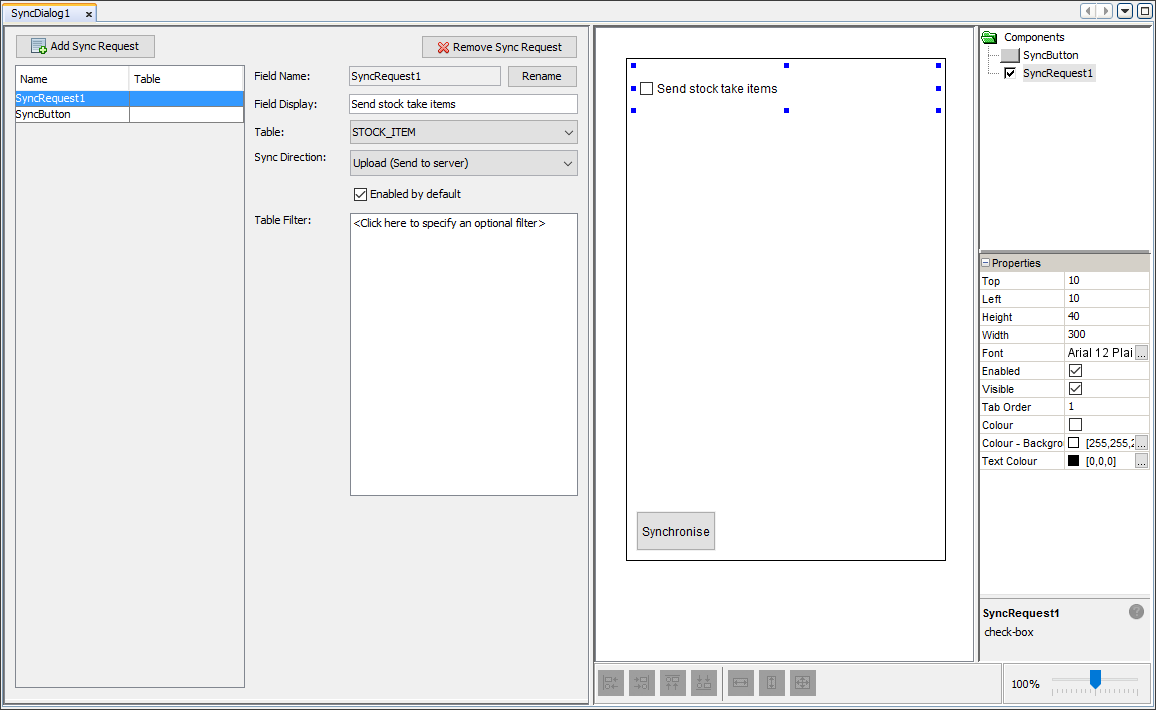
By adding this sync dialog, the application is now ready to perform synchronisation of data. However, the data flow between the application and server side system need to be defined. In order for synchronisation to work, the destination of the data will need to be specified. To do this, the data flow will need to be defined within the Data Flow element of the BXP project. This will be explained in the 'Define Data Flow' section below.
Create Form Links
Form Links are used to control the flow of the application and define what dialogs can be traversed from dialogs within the application. Essentially a form link is made of two dialogs, one is the parent dialog which will open the other dialog or its child dialog. In order for the parent dialog to open its child dialog, at least one specified action is needed, for example, tapping a specified button could be the action required for the parent dialog to open its child.
For this application, the list dialog should open the edit dialog in order to create, modify or delete a stock item from the data table and to do this, a form link should be created. While holding the 'Ctrl' button, select the parent node and hold the left click button of the mouse. By dragging the mouse to the intended child dialog while holding the 'Ctrl' and left click buttons, a form link is created which is visually reinforced through the directional arrow shown. The child dialog is the dialog connected to the arrow with the arrowhead pointing towards it and the dialog on the other end is the parent dialog. Create a form link from the list dialog as the parent dialog and the edit dialog as its child dialog resulting in something similar to the image below.
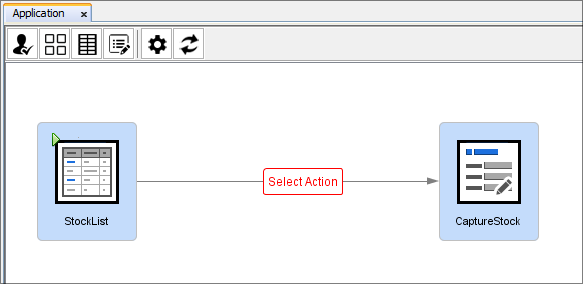
However the form link is not complete. The action that needs to
be performed within the list dialog has not be specified. Initially
we will create the form link with an action to open the edit dialog
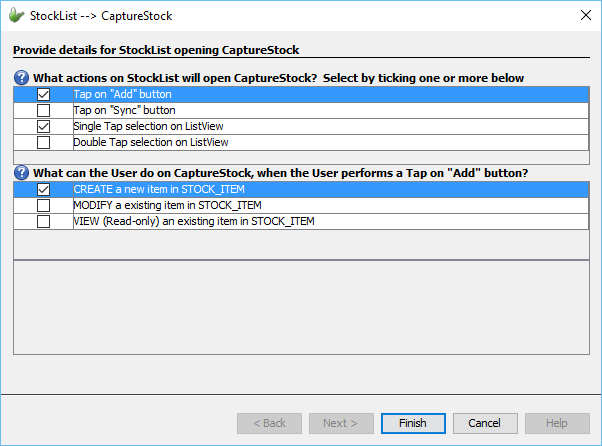
with the context of creating a new item in the data table. To do this,
double click  to
open the form link editor. The window will show all the possible actions
that can be done to open the child dialog. For this example application,
we would like the edit dialog to open when the 'Add' button is pressed.
Once the action has been set, the edit dialog will need to be provided
with more information to detail the context it should be opened. Since
edit dialogs can be flexible in how they are opened they can be opened
with numerous contexts to provide more functionality to the application.
In this case, we want the edit dialog to be opened to 'CREATE a new
item in STOCK_ITEM'.
to
open the form link editor. The window will show all the possible actions
that can be done to open the child dialog. For this example application,
we would like the edit dialog to open when the 'Add' button is pressed.
Once the action has been set, the edit dialog will need to be provided
with more information to detail the context it should be opened. Since
edit dialogs can be flexible in how they are opened they can be opened
with numerous contexts to provide more functionality to the application.
In this case, we want the edit dialog to be opened to 'CREATE a new
item in STOCK_ITEM'.
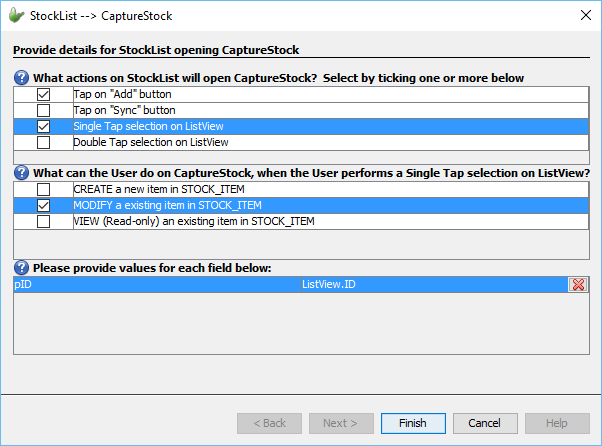
A form link can also be specified with more than one action to open its child dialog to add more functionality and direction to the mobile application. Other than adding new items, the application should be able to modify existing items in the list which can be done by adding another action to the form link. By simply opening the form link editor and ticking another action, that action will be added to the form link. The action can then be given other contexts in which to open the child dialog. However some contexts require more information to be able to open the child dialog with that context. For example, to modify an existing item in a data table, the item to edit must be specified. When a context requires more information, the editor window will be updated with the required values that need to be provided in order to open the dialog with the given context. By clicking on the field value, the 'Choose a Parameter' window will appear where the value to be used to specify the extra information required (e.g. value to match unique record identifier) can be set.
For this application, we would like to modify an existing item in the data table, when a item in the listview is single tapped. By ticking this action, we can specify the context to open the edit dialog should be to 'MODIFY an existing item in STOCK_ITEM'. By adding this context, the unique record identifier for the record to be modified will need to be specified. This can be done through form values, as the list dialog provides all the column values for the currently selected item in the listview control as form values ready to be used within this form link.
For more information refer to the Form values section. The form link editor should look similar to the image below.
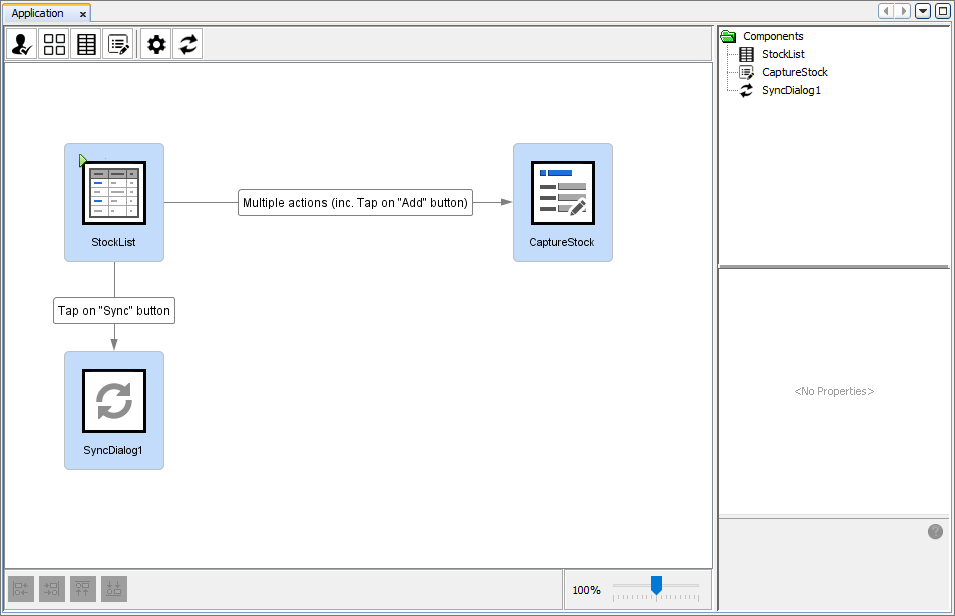
Next we need to create a form link between the list dialog and the sync dialog. For this application, when the 'Sync' button is pressed on the list dialog, the sync dialog should open.
Form links allow the flow of the application to be specified in a visual representation allowing for ease of use without any programming. Through form links we can detail how the application can be explored by a user in a simple and easy way. By adding form links our application is complete and ready to be deployed and released onto devices.
The Application Panel for the project should look similar to the image below.
Refer to the Form Links chapter for more information.
Define Data Flow
The Data Flow element within BXP projects is provided to allow the flow of data between clients and server side data sources to be defined. Defining the data flow between client and server is integral to synchronisation as this specifies where data is sent and received during the synchronisation process. Through the Data Flow Panel, the flow of data between various sync points can be outlined in a visual view.
Client table nodes can be defined through the data flow panel. These nodes represent the data within a data table on a client device. Data accessor nodes can also be defined through the data flow panel where these nodes represent sync points that can be viewed as server side data sources. There are two types of data accessors, one being a database data accessor that represents a database that can be accessed from the server. The other type being a file data accessor that defines a single file as the data source/destination. Data flow links can be created between these two types of nodes to define the flow of data between the two sync points.
For this application, the client devices should be developed to send data from the client to the server. Through the Data Flow element we can dictate the data sent from client to the server should be saved to a database. A convenient feature is the automatic creation of client table nodes within the Data Flow element. As data tables are defined through the Application element, corresponding client table nodes will be created in the data flow element to ensure the consistency of table definitions within the application.
Since the STOCK_ITEM table node has already been created, only a database data accessor node will need to be create. A database data accessor node can be created by dragging and dropping the icon from the top toolbar into the Data Flow Canvas. This node will be used to represent the database that will be connected to when synchronisation is executed and will contain the relevant information so that the BrightServer instance can connect and send the server data to. By double-clicking the newly created node, the database window will appear where the details of the database can be entered to allow BrightServer access to it. Here the type of the database can be chosen to allow the required details to be entered. However if the type of the database is not present in the drop down menu, the type 'Custom' can be chosen. Through the custom type, other database types can be used with accordance to a JDBC driver. Java Database Connectivity (JDBC) has the purpose of providing an interface for clients to access, query and update a database. If it is required, the JDBC database driver must be placed into the 'lib' directory under the install directory of BrightServer. For more information about the 'Custom' type refer to the Microsoft SQL Server Configuration chapter.

Once the details of the database have been entered, a data flow link should be created between the STOCK_ITEM client table and the database node in the required direction. Data flow links can be created by holding the 'Ctrl' button and dragging the mouse from the source data source not to the destination data source. If the connection is valid, the rendered arrow will snap to position indicating the flow of data through the directional arrow shown.
Through these simple steps we have now defined the data flow of information between clients and servers and now synchronisation can be performed and the BXP project is ready to be deployed onto the server.
Publish and Run Application
The application can be published to the server so that devices can connect to this server and be distributed with the application. BrightServer will be used to publish our application. The BrightServer simplifies the process of publishing applications onto the server and deploying them to devices. Through a simple button press, the project can be published and the user details needed to be entered into BrightForms can be generated automatically. These login details will be used to validate the user of the application and allow the latest published application to be deployed onto the mobile device.
Before publishing applications to BrightServer, a BrightServer instance should be currently active and its details should be entered into the BrightBuilder options. Within the BrightBuilder options, a Publish tab exists with the purpose of specifying the default server values for a BrightServer instances. These options can be accessed through the 'Tools' menu in the top menu of BrightBuilder and pressing on the 'Options' submenu item. The BrightServer settings can be found under the 'Publish' tab where the required details for the BrightServer such as the server IP address can be edited.

By simply right-clicking the BXP project and pressing 'Publish', the project will be validated to check for any compilation errors. If errors exist within the project then publishing will fail and the 'Output - Validation' window will list all errors within the application. If the validation passes and no errors are found, the 'Publish Project' wizard. The aim of this wizard is to provide users an easy avenue to enter all required details for the project to be published correctly. The first step involves confirming the server details that the project will be deployed to. Initially when it is opened, the wizard will be populated with the default server details outlined in the Options window of BrightBuilder. Details of a currently active BrightServer should be entered as the project will be deployed to it and the wizard will not continue until an active BrightServer instance is specified.
The next step involves identifying the elements within the BXP project that will deployed. Here we have two options. The first option is the 'Deploy Application' option where the Application element of the BXP project will be deployed to the server. Essentially the Application element contains the definition of the application hence should be deployed onto the server. The other option is 'Deploy Data Flow'. The Data Flow element should be deployed alongside the Application element when the project requires synchronisation to take place. Under each option, notes about each element can be added.
The last step is an optional step where other files can be uploaded to the server alongside the published project. In this example project, no other necessary files are required to be uploaded. By clicking the 'Finish' button the application will be attempted to be deployed onto the server. If it was successful, then a success window will display the required login details to be entered into the BrightForms app for devices to connect to the server and be distributed with that published application.

Once the required credentials are entered into the BrightForms app, the application will be loaded onto the device and executed on BrightForms.
This simple example has shown how easy and simple it is to develop and publish mobile applications without the need for any programming experience. Through the BXP project designer and BrightServer, mobile application development has never been easier.