
Getting Started with BrightWeb
Contents Hide
BSP - Bright Software Project
The BSP defines the application which is run via the web client. With BrightWeb, the key elements in the project are Tables and Queries and Forms. These represent the server tables, subsets of data, and representation of data within the application accordingly, and are explained below.
Forms
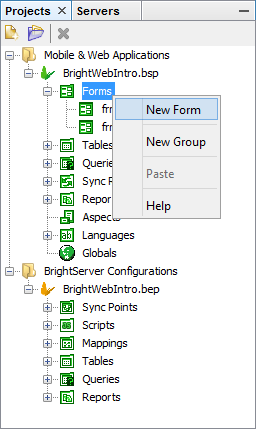
Forms are what BrightServer renders in the user's web browser, and are edited via the Forms Editor in BrightBuilder.
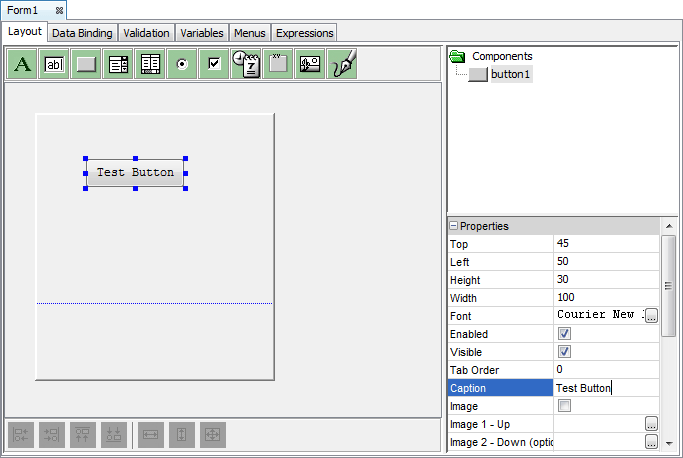
Controls for screen elements which the user may interact with. Their appearance, initialisation and behaviour are defined by the control's properties. This may be statically defined in the project, such as in the case of labels, edit control text entry fields or images, but also may also be linked to queries, such as in the case of listviews and combo boxes, and thus will dynamically change depending on server data. For more information, please refer to the BrightBuilder > Form Controls chapter of this documentation.
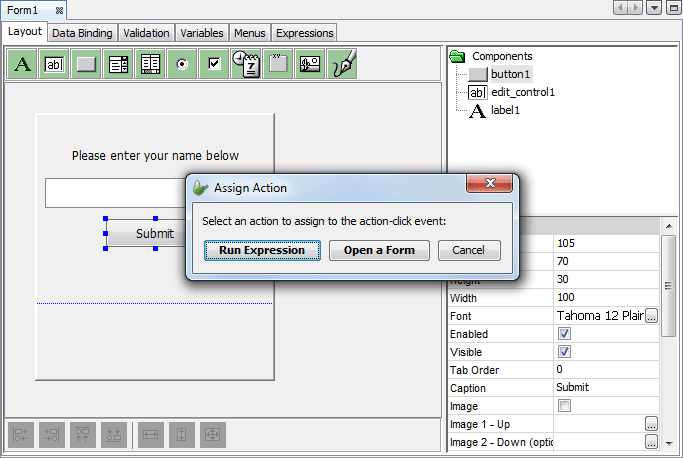
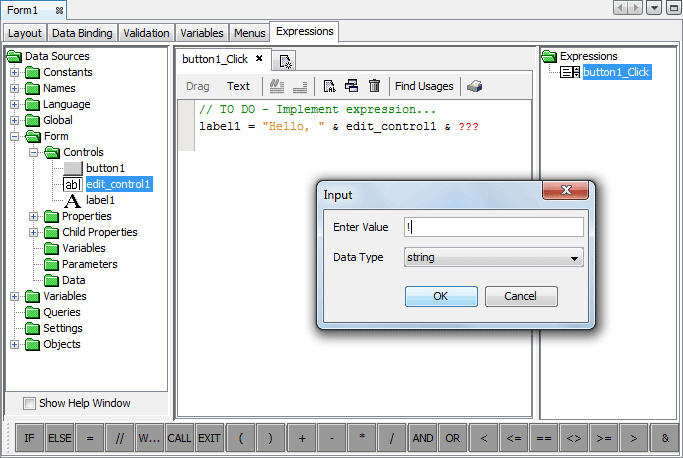
Expressions for behaviour - associated with actions on controls. These are assigned via the controls' properties, and can be created simply by double clicking on the control and selecting 'Run Expression ...'. The expression may then be constructed via the Expressions Editor and Data Sources/Object Methods available to the project to have the web application respond accordingly. Via expressions, any control may be configured to perform any number of tasks, specific to user process and workflow.
Tables
Tables that will be accessed directly off the server's database are defined under the project's Tables node. To create a new table, right click the n ode and select 'Add Table'. Once created, fields and data types may be defined accordingly. Where data types are not found as is in BrightBuilder, such as 'float', 'decimal' or 'currency', please use the BrightBuilder equivalent such as 'double'. BrightServer will convert these values accordingly when writing to the database.
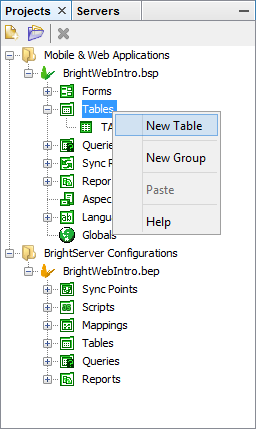

Tables may be imported by connecting to the database and using the Import Server Tables feature, or created via the 'Create Tables' feature, accessed by right clicking the Project's node. For more information on this process, please refer to the BrightBuilder > Projects > Import/Create Tables chapter of this documentation.
Tables are referenced in expressions and/or queries to records, update or delete records in conjunction with the Database object.
Queries
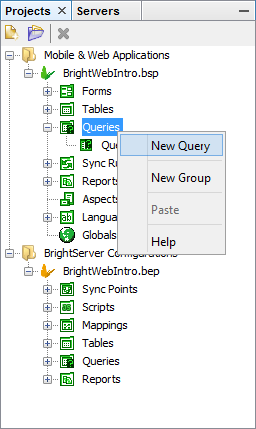
Queries are used to retrieve records from tables on the database. Queries are defined via BrightBuilder's standard query editor, or Advanced SQL for pure SQL statements. To create a new query, select the Query node, right click and select 'Add Query'. The type of query used may be changed in its properties. Please note, that only standard and advanced queries may be used via BrightWeb.
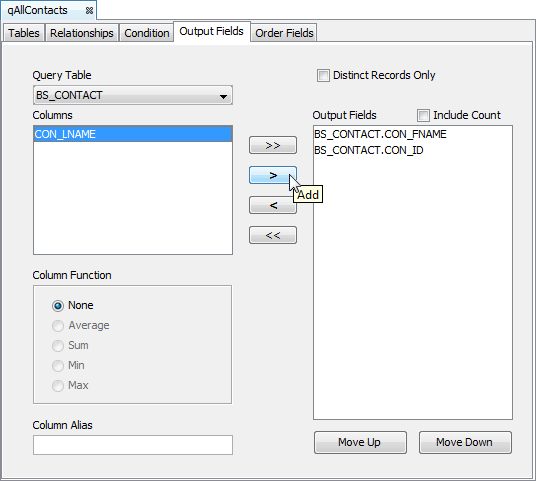
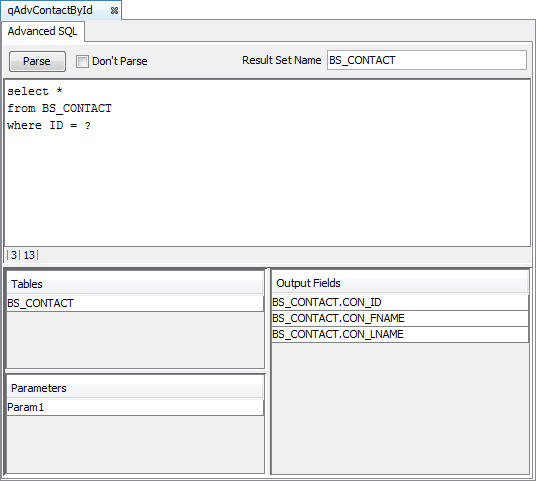
Queries may have inputs in the form of Parameters, and a range of outputs. These parameters and outputs are accessed by the Query node or Query Object within expressions, and also Columns via the Listview or Combo box properties. For more information defining queries, please refer to the BrightBuilder > Queries section of this document.
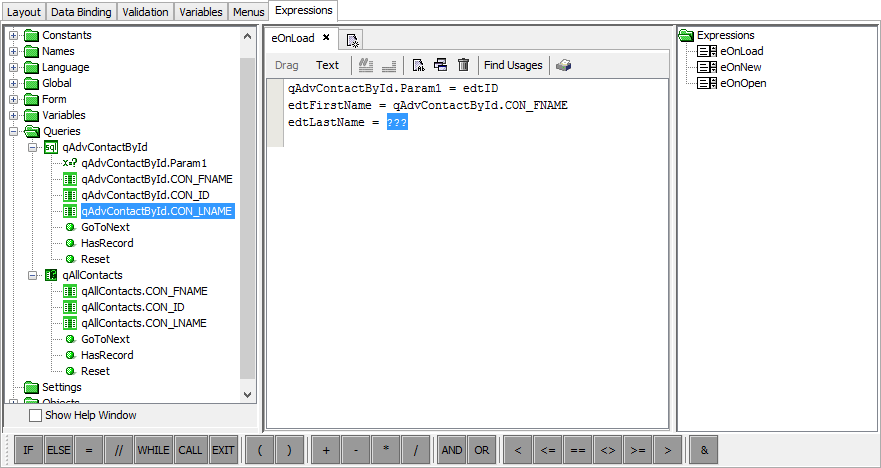
Once defined, queries may be used specify the subset of records which the Database object's Update or Delete records occur over. Furthermore, records may be iterated through using the Cursor Form/DataBinding feature of the mobility suite.
Application Deployment
A completed application may be deployed to a BrightServer instance, such that it may be released to users. In order to do this, locate the project in the Projects panel and select 'Deploy Application to Server ...'. Once this is selected, the project will be verified, and if it contains no errors, will be uploaded upon logging in to the server. Please note, that any application with errors may not be deployed to BrightServer. The project will be assigned a version on successful deployment. This figure is used when deploying the application to users.

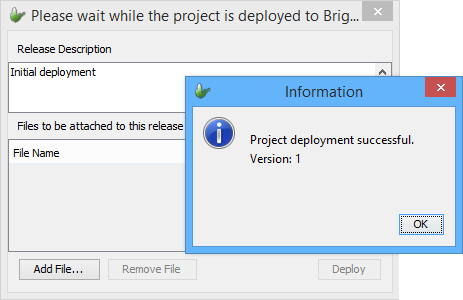
For more information, please refer to the BrightBuilder > Project Deployment chapter of this document.
BEP - BrightServer Project
The server is used to define the communication between BrightServer and data sources. Typically, only a database data source needs to be defined when designing a project to use on BrightWeb.
Sync Points
Sync points define any number of data sources which BrightServer will access to retrieve data. BrightServer is able to communicate with a wide range of database sources, as well as file or user defined scripts. Typically, BrightServer must use a database data source when executing projects via BrightWeb. A sync point may be created by right clicking the node and selecting 'Add Sync point'.
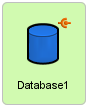
To define a source, simply open the sync point and drag and drop the database object from the top toolbar. Double click the resulting element in the sync panel. The connection settings may be defined accordingly via the Database Configuration dialog. After defining the source, be sure to configure it as a 'Server Data Source', and the 'Default Data Source' via is properties for BrightWeb.

Server Definition Deployment
Once the database is configured, the BrightServer Project may be uploaded to the BrightServer instance. This is done in a similar fashion to the BSP, i.e. right clicking on the Project node and selecting 'Deploy to Server ...'.

This will deploy the application to the Server Configuration repository. Post-deployment, a prompt will appear, giving the option to automatically continue to the server's Deployed Configurations node to activate the deployed configuration. Once activated, the project may then be made as the default server configuration, or assigned to user accounts to sync.

If the BEP configuration changes for a particular user, these changes will take effect when the user logs off and next logs in to their BrightWeb application.
For more information on BrightServer configurations please consult the BrightServer > Multiple Configurations chapter of this document.
Server Configuration
Once both the server and project are defined, the 'Servers' panel of BrightBuilder is used to configure a running BrightServer instance. Here, runtime settings such as the port of communication, licensed devices and user configuration may all be adjusted for the server both locally or remotely.
Connection/Port
The port BrightServer runs on is necessary when connecting to BrightWeb's interface. This is configured via the 'Server' element of the 'Configuration' node of the Server instance.
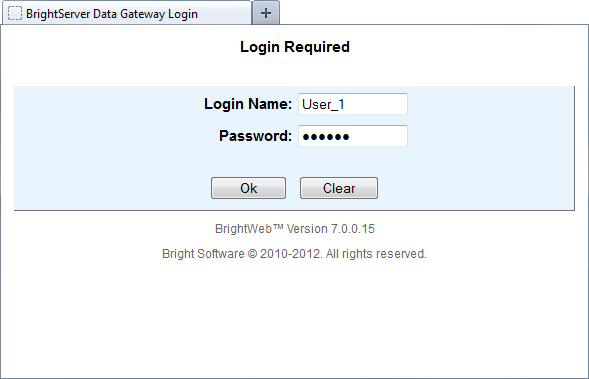
This port is used in conjunction with the URL of the server. For example, if a server was on the IP address 127.0.0.1, and communicating over port 8080, the web address would be:
http://127.0.0.1:8080/brightserver/web/
For more information on the other server runtime settings that may be configured via this screen, please refer to BrightServer > Server Settings.
Licenses
Licences within BrightServer are either for Web (per user) or standard BrightForms (device) platforms. Licensed web users or devices may be observed via the 'Licensed Web Users' and 'Licensed Devices' nodes accordingly in the Servers panel, and also may be configured via the 'License' node of the Server instance. If no web licenses are found, BrightServer's web applications will operate in DEMO mode for one user.

For more information on licensing BrightServer, please refer to the BrightServer > License Configuration chapter of this document.
Users
To deploy an application to a user, specify the application name via the user's 'Application' field, and the version deployed. This may alternatively be done via the 'Release Multiple Applications' option, listing all available applications and versions on the server.
Similarly, specify the configuration name and version via the 'Server Configuration' column if necessary. This field may be left blank if the default configuration is to be used.
If the user is to use the application via web, unsure they have their 'Web Access' column ticked.

There are a number of further administrative tools available via the user configuration panel. For more information, please refer to BrightServer > User Configuration.
